 Brickify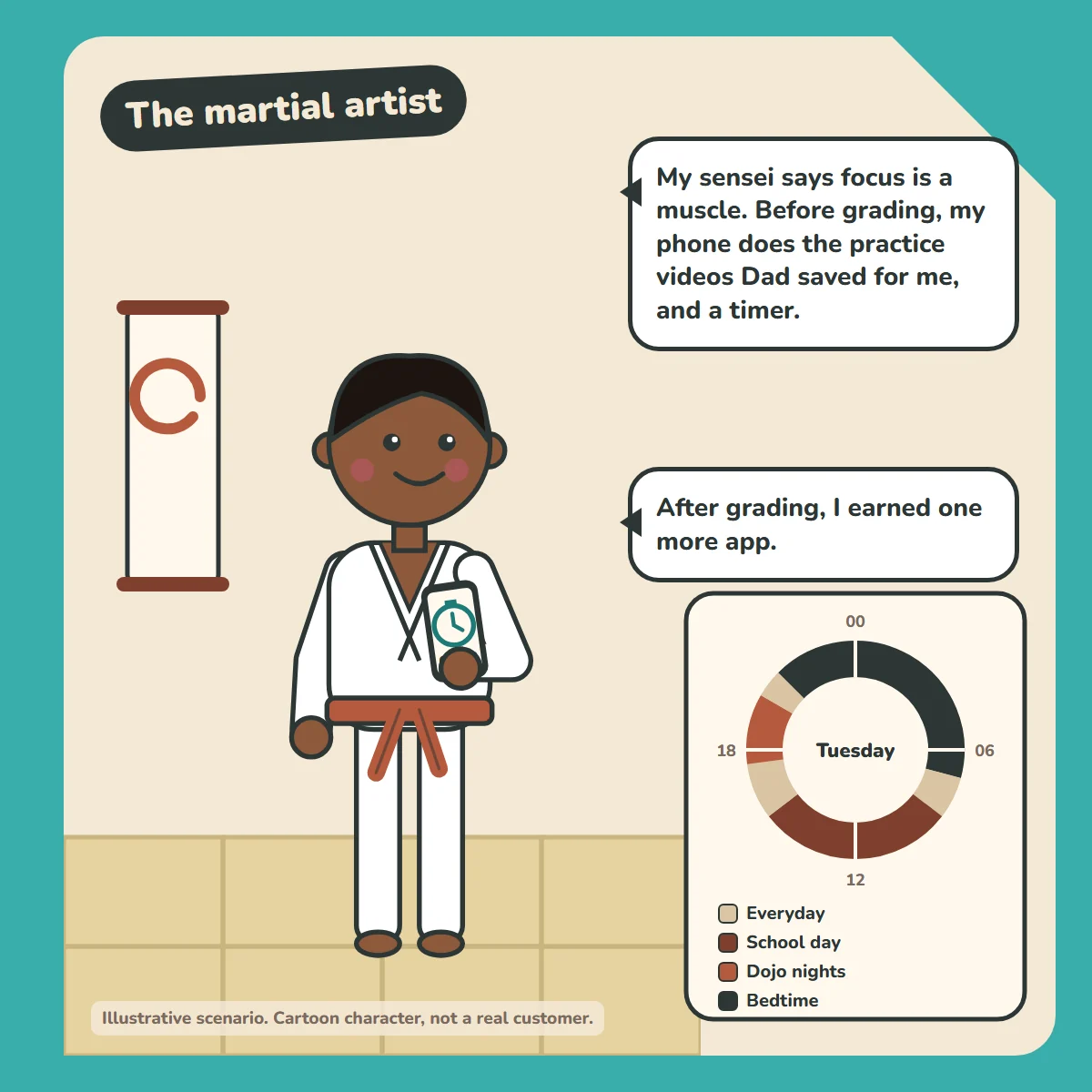
"My sensei says focus is a muscle. Before grading, my phone does the practice videos Dad saved for me, and a timer."
"After grading, I earned one more app."
How the week is set up
- Everyday (default): calls, texts, music, camera and Photos, plus any app earned at grading. Runs whenever nothing else is scheduled.
- School day: Mon to Fri, 08:30 to 15:30: calls and texts only.
- Dojo nights: Tue and Thu, 17:30 to 20:00: calls, Photos (the downloaded kata videos) and a timer.
- Grading week: added for that week only, Mon, Wed and Fri, 18:00 to 20:30: calls, Photos and a timer. Delete it after the grading.
- Bedtime: every night, 21:00 to 07:00: calls only.
How the profiles work: there's one default profile, which the phone falls back to whenever nothing else is scheduled. The other profiles run on their own schedules, and there's always an overnight one. The schedules don't overlap, so it's always clear which profile is running. Emergency calls always work, whatever profile is active.
Good to know
Brickify blocks or allows whole apps. If the kata videos are on a video platform, allowing it opens the whole app, not just those videos. Downloading the clips to Photos keeps it to just the practice videos.
For parents
The trust ladder, one rung at a time. See how Brickify works to set this up, or browse more example weeks in our Guides.
Ready to Brickify it?
On your schedule. One-time purchase, no tracking.