 Brickify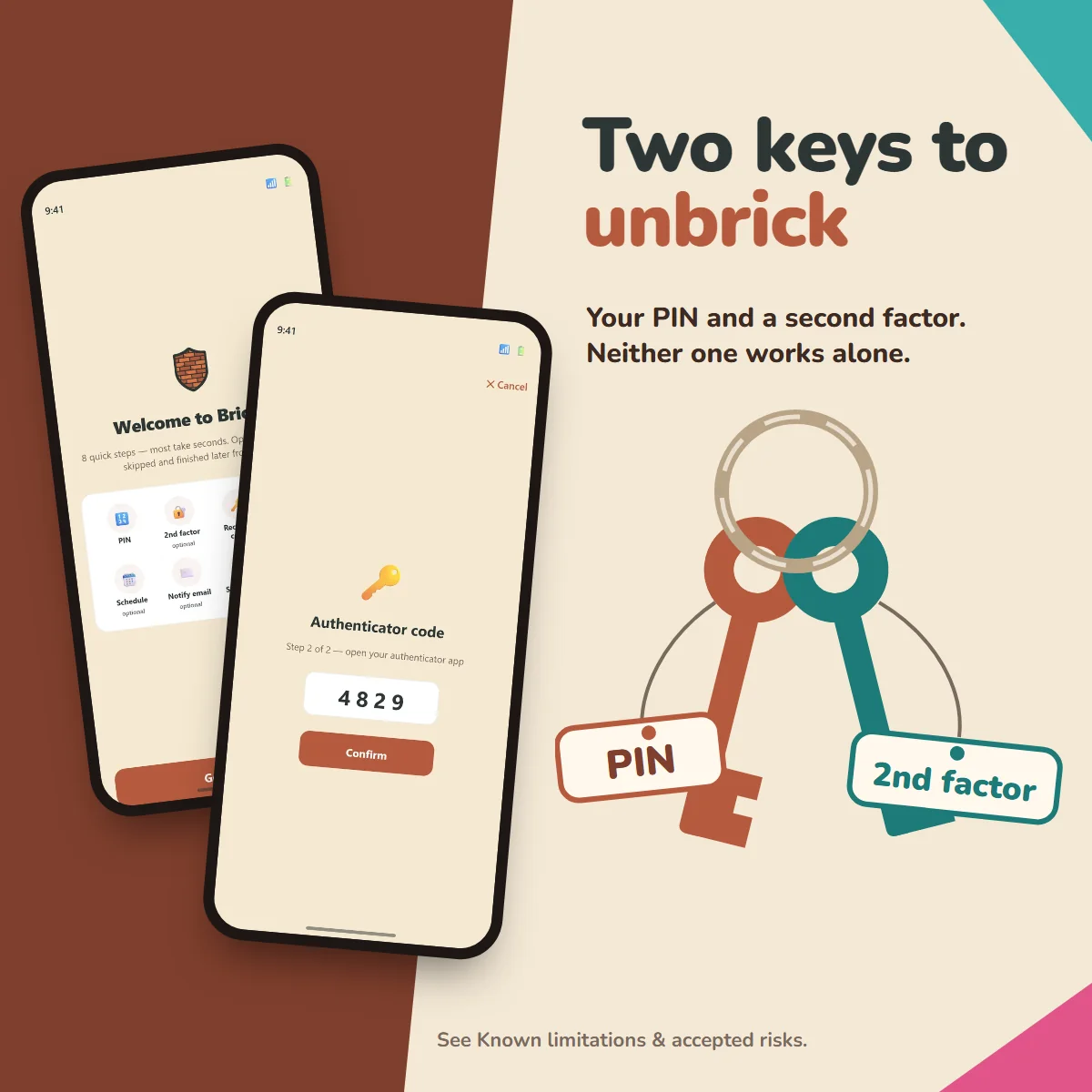
Why would you need to unbrick?
Usually, once you've set up your blocking profiles and started Brickify, it cycles through them on its own, switching at the times you've chosen.
You only need to unbrick if you want to open an app while it's blocked, or change anything in your Brickify setup. If you've allowed the Google Play Store or Apple App Store, you might install a new app that needs adding to a profile. I'd recommend blocking the app stores in your Bricked profiles so this doesn't happen.
More likely, you'll want to change the times of a profile. Maybe it's revision season and everything needs to be Bricked all the time. Maybe it's the holidays and every day should be on "weekend mode".
How do you unbrick?
There's a clear Unbrick button in the app. Tap it and it asks for your PIN and your second factor. You set both up during onboarding.
- PIN: a 4-digit code, one you'll remember but won't enter on impulse. If you're using Brickify on your child's phone, don't tell them the PIN, and don't reuse one they might already know, like your own phone's passcode.
- Second factor: an authenticator app or an email code. It's an optional step in setup, but I'd strongly recommend it: without it, the PIN alone unlocks Brickify. Put the authenticator app on your own phone, or use your own email address, so the code never appears on your child's phone.
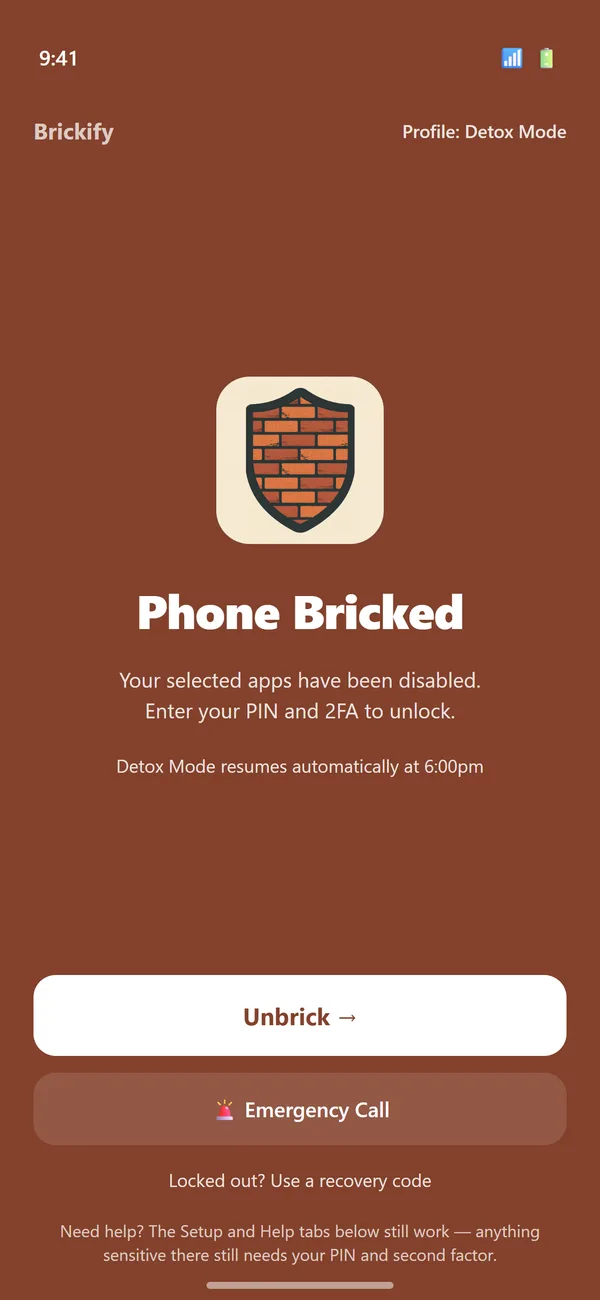
What happens if you lose both?
Oops. Now you need your recovery codes: three one-time codes shown during onboarding. You'll have been prompted to write them down or screenshot them, because they won't be shown again. Keep them somewhere safe, and not on the Bricked phone.
To use one, tap "Locked out? Use a recovery code" on the bricked screen and type it in. Each code works once.
If you've lost those too, contact support with the device ID shown on the recovery screen, and we can provide a recovery code as a last resort. If even that isn't possible, a factory reset removes all restrictions, but it erases everything on the phone.
Ready to Brickify it?
On your schedule. One-time purchase, no tracking.